


How to Set Up Vercel Deployment Checks with Playwright E2E Tests
Picture this: It’s Friday afternoon. You merge a “quick fix” to production. Vercel deploys it in 47 seconds (because Vercel is awesome like that). You close your laptop, feeling accomplished.
Then your phone buzzes. And buzzes again. And again.
The checkout button is broken. On your e-commerce site. During peak hours.
If only there was a way to automatically run your E2E tests before the deployment goes live…
Spoiler: There is. It’s called Deployment Checks, and this guide will walk you through setting it up.
What We’re Building
By the end of this guide, you’ll have a setup where:
- You push code to your production branch
- Vercel builds your app (but doesn’t make it live yet)
- GitHub Actions runs your Playwright tests against the preview URL
- Only if tests pass, Vercel promotes the deployment to production
- Your Friday afternoons become peaceful again
We’re using Vercel’s Deployment Checks feature to create a staging gate — a checkpoint that must be cleared before any code reaches your users.
Prerequisites
Before we dive in, make sure you have:
- A Vercel project connected to GitHub
- A Playwright test suite (even a simple smoke test works)
- Access to your project’s Vercel settings
- A coffee (optional, but recommended)
If you’re still looking for a guide on how to set up Playwright tests in your project, you can find one in the previous blog post: Running Playwright Tests.
The Architecture
Here’s what happens under the hood:

The key insight: Vercel sends a repository_dispatch event to GitHub when your build is ready but before it’s promoted to production. Your GitHub Action runs tests against the preview URL, reports the result, and Vercel only promotes if all checks pass.
Step 1: Enable Auto-Assign in Vercel
Go to Project Settings → Environments → Production → Branch Tracking and make sure “Auto-assign Custom Production Domains” is enabled. This allows Vercel to automatically promote deployments once all checks pass.
Step 2: Create the GitHub Actions Workflow
Create a new file at .github/workflows/deployment-checks.yml:
name: Deployment Checks

on:
  repository_dispatch:
    types:
      - 'vercel.deployment.ready'

jobs:
  e2e-tests:
    # Only run for production deployments
    if: github.event.client_payload.environment == 'production'
    runs-on: ubuntu-latest

    steps:
      # This action reports status back to Vercel
      - name: Report Check Status to Vercel
        uses: vercel/repository-dispatch/actions/status@v1
        with:
          name: 'Vercel - my-project: e2e-tests'

      # Use Vercel's checkout action (handles the correct commit SHA)
      - name: Checkout
        uses: vercel/repository-dispatch/actions/checkout@v1

      - name: Setup Node.js
        uses: actions/setup-node@v6
        with:
          node-version: '22'
          cache: 'npm'

      - name: Install Dependencies
        run: npm ci

      - name: Install Playwright Browsers
        run: npx playwright install chromium --only-shell

      - name: Run Playwright Tests
        run: npx playwright test
        env:
          BASE_URL: ${{ github.event.client_payload.url }}

      - name: Upload Test Report
        uses: actions/upload-artifact@v4
        if: always()
        with:
          name: playwright-report
          path: playwright-report/
          retention-days: 30
Let’s look at the key parts of this workflow.
The Trigger: repository_dispatch
on:
  repository_dispatch:
    types:
      - 'vercel.deployment.ready'
Vercel sends several event types to GitHub:
vercel.deployment.ready— Build complete, not promoted yet (use this one)vercel.deployment.success— Build complete and auto-promoted (too late!)vercel.deployment.promoted— After manual or automatic promotionvercel.deployment.error— Build failedvercel.deployment.canceled— Build was cancelled
For Deployment Checks, you must use vercel.deployment.ready. If you use vercel.deployment.success, your tests run after the deployment is already live — defeating the entire purpose.
The Status Action
- uses: vercel/repository-dispatch/actions/status@v1
  with:
    name: 'Vercel - my-project: e2e-tests'
Important: This step must be the first step in your job. It reports “pending” status immediately when the job starts, and automatically reports “success” or “failure” when the job completes. This is also what makes the check visible in Vercel’s “Add Checks” settings after the workflow runs once.
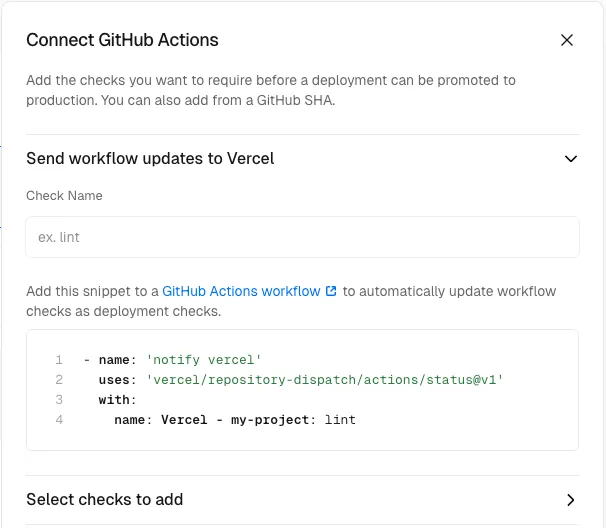
The name parameter must exactly match the format Vercel - <PROJECT_NAME>: <CHECK_NAME>.
The easiest way is to use the template provided by Vercel under Project Settings → Build and Deployment → Deployment Checks → Add Checks:
The Checkout Action
- uses: vercel/repository-dispatch/actions/checkout@v1Why not use the Github Standard actions/checkout@v5 to checkout the code? When GitHub receives a repository_dispatch event, GITHUB_SHA is set to the latest commit on the default branch, not the commit that triggered the Vercel deployment. If someone pushed another commit while your deployment was building, you’d test the wrong code.
Vercel’s checkout action extracts the correct SHA from the event payload and checks out that specific commit.
Accessing the Preview URL
env:
  BASE_URL: ${{ github.event.client_payload.url }}
Vercel includes the preview URL in the event payload. We’ll configure Playwright to use this in Step 3.
Step 3: Configure Playwright
Make sure your Playwright config uses the BASE_URL environment variable:
// playwright.config.ts
import { defineConfig } from '@playwright/test';

export default defineConfig({
  testDir: './e2e',
  fullyParallel: true,
  forbidOnly: !!process.env.CI,
  retries: process.env.CI ? 2 : 0,
  workers: process.env.CI ? 1 : undefined,
  reporter: process.env.CI ? 'github' : 'html',
  use: {
    baseURL: process.env.BASE_URL || 'http://localhost:3000',
    trace: 'on-first-retry',
  },
  projects: [
    {
      name: 'chromium',
      use: {
        ...devices['Desktop Chrome'],
      },
    },
  ],
});
Step 4: Handle Deployment Protection (Optional)
If you have Deployment Protection enabled (password protection, Vercel Authentication, etc.), your tests will fail because they can’t access the preview URL. Skip this step if you don’t use Deployment Protection.
To bypass protection for automated tests:
- Go to Project Settings → Deployment Protection → Protection Bypass for Automation
- Enable it and copy the secret
- Add it to your GitHub repository secrets as
VERCEL_AUTOMATION_BYPASS_SECRET - Update your workflow to pass the secret:
- name: Run Playwright Tests
  run: npx playwright test
  env:
    BASE_URL: ${{ github.event.client_payload.url }}
VERCEL_AUTOMATION_BYPASS_SECRET: ${{ secrets.VERCEL_AUTOMATION_BYPASS_SECRET }}- Update your Playwright config to send the bypass header:
// playwright.config.ts - add to the "use" section
extraHTTPHeaders: process.env.VERCEL_AUTOMATION_BYPASS_SECRET
  ? { 'x-vercel-protection-bypass': process.env.VERCEL_AUTOMATION_BYPASS_SECRET }
  : undefined,
Step 5: Register the Check in Vercel
Now that your workflow exists, we need to tell Vercel to wait for it.
- Trigger a deployment by pushing to your production branch
- Wait for the GitHub Action to run once (this registers the check name with GitHub)
- Go to Project Settings → Deployment Checks → Add Checks
- You should now see your check name:
Vercel - my-project: e2e-tests - Enable it
Step 6: Test the Setup
Push a change to your production branch and watch the magic happen:
- Vercel builds your app
- Deployment shows “Production (Staged)”
- GitHub Action triggers and runs tests
- If tests pass: Deployment is promoted to production
- If tests fail: Deployment stays staged
You can also Force Promote from the deployment details page if you need to bypass checks in an emergency.
Conclusion
Deployment Checks are a powerful feature that can prevent production incidents. The setup takes about 15 minutes, and once it’s working, it works reliably.
The key takeaways:
- Use
vercel.deployment.readyto trigger tests before promotion - Use Vercel’s checkout and status actions for correct SHA handling
- Match check names exactly between your workflow and Vercel settings
Now go enjoy your Friday afternoons, knowing that broken code won’t make it to production without passing tests first.
References
- Vercel Deployment Checks Documentation
- Vercel for GitHub - Repository Dispatch Events
- vercel/repository-dispatch GitHub Repository
- Playwright Configuration Documentation
Found this helpful? We’re building kiteto, an AI-powered tool that transforms natural language descriptions into real Playwright code. Simply generate test code and integrate it into Vercel Deployment Checks.
Frequently Asked Questions
Why not just run tests on every push with a regular GitHub Action?
Regular CI tests run against your local build or a separate test environment. Deployment Checks run against the actual Vercel preview deployment — the exact same build that will go to production. This catches environment-specific issues that local tests might miss.
Do Deployment Checks work with preview deployments too, or only production?
They work with both. You can configure checks for any environment. Our workflow uses if: github.event.client_payload.environment == 'production' to limit it to production, but you can remove or adjust this condition.
Can I have multiple Deployment Checks?
Yes. You can register multiple checks in Vercel, and all of them must pass before promotion. Just use different name values in separate jobs or workflows.
What happens if GitHub Actions is down?
The deployment will stay in 'staged' status until the check reports back. You can manually promote via Force Promote in the Vercel dashboard if needed.