


Running Playwright Tests: Complete Guide for Beginners
Introduction
Have you used kiteto to automatically generate tests for your web application and now want to run them? This guide shows you step by step how to get the generated Playwright tests running on your computer—even without in-depth programming knowledge.
Note: In future versions of kiteto, you will be able to run your tests conveniently directly from the user interface without having to perform these manual steps. Until then, this guide will help you use your generated tests today.
What you will learn:
- How to install Node.js and Playwright
- How to add kiteto tests to your project
- How to run the tests and interpret the results
Prerequisites:
- Basic knowledge of using the command line (terminal)
- A computer running Windows, macOS, or Linux
Estimated time: 10-15 minutes
Step 1: Install Node.js
Playwright requires Node.js to function. To check if Node.js is already installed, or to install it if necessary:
Check if Node.js is installed
Open your terminal (on Windows: PowerShell or Command Prompt) and enter:
node --versionIf a version number appears (e.g., v23.6.1), Node.js is already installed. Then skip to Step 2.
Install Node.js (if not available)
- Visit nodejs.org
- Download the Node.js installer
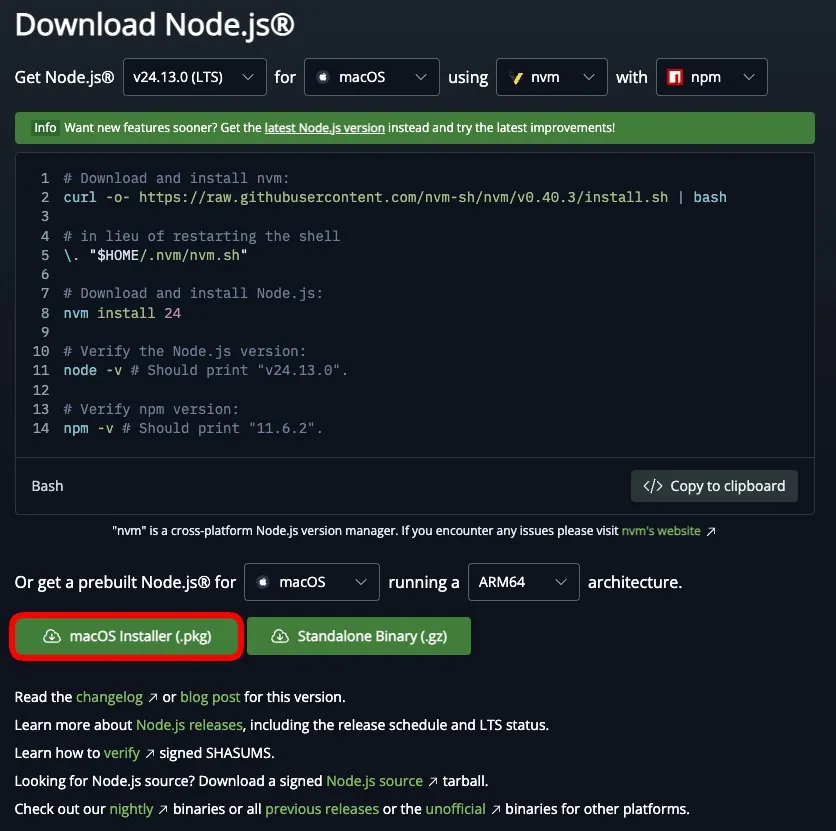
- Run the installer and follow the instructions
- Check the installation with
node --version
Step 2: Set up the project
Create a new project directory
Create a folder for your tests:
mkdir my-playwright-tests
cd my-playwright-tests
Step 3: Install Playwright
Install Playwright and TypeScript in your project:
npm init playwright@latestWhen prompted choose:
- Typescript
- A name for the Tests folder name (default:
tests) - Add the GitHub Actions workflow
- Install the Playwright browser
Insert generated test code
- Copy the TypeScript code generated by kiteto
- Create a new file in the
testsfolder, e.g.,tests/my-first-test.spec.ts - Paste the copied code and save the file
Tip: Playwright automatically recognizes all files ending with .spec.ts or .test.ts as test files.
Step 4: Run tests
Now you can run your tests!
By default tests run across Chromium, Firefox and WebKit (configurable in playwright.config). Output and aggregated results display in the terminal.
Run all tests
npx playwright testRun a specific test
npx playwright test tests/my-first-test.spec.tsRun tests in UI mode (recommended for beginners)
UI mode shows you a graphical interface where you can follow the tests step by step:
npx playwright test --uiRun tests with a visible browser
By default, Playwright runs in “headless mode” (without a visible browser window). To see the browser:
npx playwright test --headedStep 5: Understand test results
When running the tests with the default configuration the results are shown in the terminal. You can see how many tests ran, how many of them passed and how long they all took.
Running 6 tests using 5 workers
  6 passed (3.4s)
View test report
For a detailed HTML report:
npx playwright show-reportThis opens an interactive report in your browser where you can filter the tests by the browser, passed, failed, skipped, flaky and more.
Next steps
Congratulations! You have successfully run your first Playwright tests. Here are some recommendations for the next steps:
Extend tests:
- Generate more tests with kiteto for different features of your application
- Organize tests into different files by feature area
Set up automation:
- Integrate tests into your CI/CD pipeline (e.g., GitHub Actions, GitLab CI)
- Set up regular test runs
Dig deeper:
- Explore the Playwright documentation
- Learn how to customize test reports
- Use Playwright’s debugging tools for failed tests
Need help?
If you encounter problems or have questions:
- Consult the Playwright documentation
- Contact kiteto support
Good luck with your testing!